The 9 Best Employee Time Clock Software Options for Shift-Based Teams

Key takeaways
- When I Work is the top pick for shift teams that want the time clock tied to the schedule.
- Jibble is free for unlimited users, while Homebase and Connecteam have free plans for teams of up to 10.
- Prioritize geofencing and schedule enforcement to stop early punches and surprise overtime.
It’s Friday afternoon, and payroll is due Monday.
You’re flipping through a stack of paper time cards, trying to read one employee’s handwriting and wondering if someone really clocked in at 6:58 a.m.
Small mistakes add up fast. They show up as extra labor costs or as short paychecks that upset your team. Employee time clock software fixes this by recording every clock-in and clock-out, so your hours are ready when payroll is.
The best time clock apps for shift-based teams connect each punch to the schedule. That way, you can catch late arrivals and surprise overtime before they hit payroll.
“Employees clocking in at the wrong location or clocking in too early before a scheduled shift is one of the most common timekeeping problems we hear from new customers before they switch,” says Jenny Roselyn, Product Marketing Manager at When I Work. “When I Work solves both of these issues with geofencing and early clock-in prevention.”
Below, we compare nine platforms built for hourly teams. You’ll see what each one does best and what it costs. Then we’ll cover the features that matter most when you’re choosing one.
The 9 best employee time clock software options for hourly teams
Effective time clock solutions have two things in common: They make it easy for your team to clock in from a phone or a shared tablet. They also give managers rules to keep punches accurate, such as geofencing or blocking early clock-ins.
To build this list, we looked at tools made for hourly, shift-based teams. We compared each one’s clock-in options, accuracy controls, timesheets, and published pricing. We also read verified user reviews on G2 and Capterra. When I Work is our product, so it’s listed first. We judged every other tool on the same criteria. Pricing is current as of October 2026.
| Best for | Who it’s not for | Key features | Pricing | |
| 1. When I Work | Shift teams that want the time clock tied to the schedule | Salaried teams without shift work, or large enterprises that run custom in-house systems | – Clock in from a phone, tablet, or computer – Geofencing – Schedule enforcement – Overtime alerts | From $2.50 per user per month; 14-day free trial |
| 2. Homebase | Single-location businesses that want a free plan | Businesses with several locations, since each one is billed separately | – PIN, photo, GPS, and geofence clock-in – Alerts for missed punches, breaks, and overtime | Free for one location with up to 10 employees; paid plans from $30 per location per month |
| 3. Connecteam | Small teams and crews that work in the field | Teams that need tools from several hubs, which are each priced separately | – Geofencing – Kiosk clock-in – Auto clock-out – Clock-in limited to scheduled shifts | Free for up to 10 users; paid plans from $35 per month for the first 30 users, billed monthly |
| 4. Deputy | Businesses that want labor law compliance tools | Very small teams on monthly billing, who still pay the $30 monthly minimum | Time clock and timesheets Leave and availability management Compliance tools | From $5.50 per user per month; $30 monthly minimum on monthly plans |
| 5. 7shifts | Restaurants | Businesses outside the restaurant industry, or restaurants that want a free time clock | – Mobile time clock – Labor compliance tools (Pro) – Tip management (add-on) | Free scheduling plan for one location; time clocking from $44.99 per location per month |
| 6. Sling | Teams that mostly need free scheduling | Teams that want a free time clock, since time tracking is a paid upgrade | – Mobile and web clock-in with geofencing (Premium) – Kiosk clock-in and late arrival tracking (Business) | Free plan for scheduling only; time tracking from $2 per user per month |
| 7. Buddy Punch | Teams that need a stand-alone time clock | Teams that want scheduling on the entry-level plan, since it starts on Pro | – GPS on punches – Geofencing and kiosk, QR code, and photo clock-in (Pro) | $19 monthly base fee plus $4.99 per user per month |
| 8. QuickBooks Time | Businesses that already run QuickBooks | Businesses that don’t use QuickBooks for payroll or accounting | – Time Kiosk – Offline clock-in – Geofencing and mileage tracking (Elite) | $20 per month plus $10 per user |
| 9. Jibble | Teams that want a free time clock for unlimited users | Multi-location businesses that want to stay on the free plan, which limits geofences | – Facial recognition – Geofencing – Offline and kiosk clock-in | Free for unlimited users; paid plans priced per user |
1. When I Work
Best for: Shift teams that want the time clock tied to the schedule
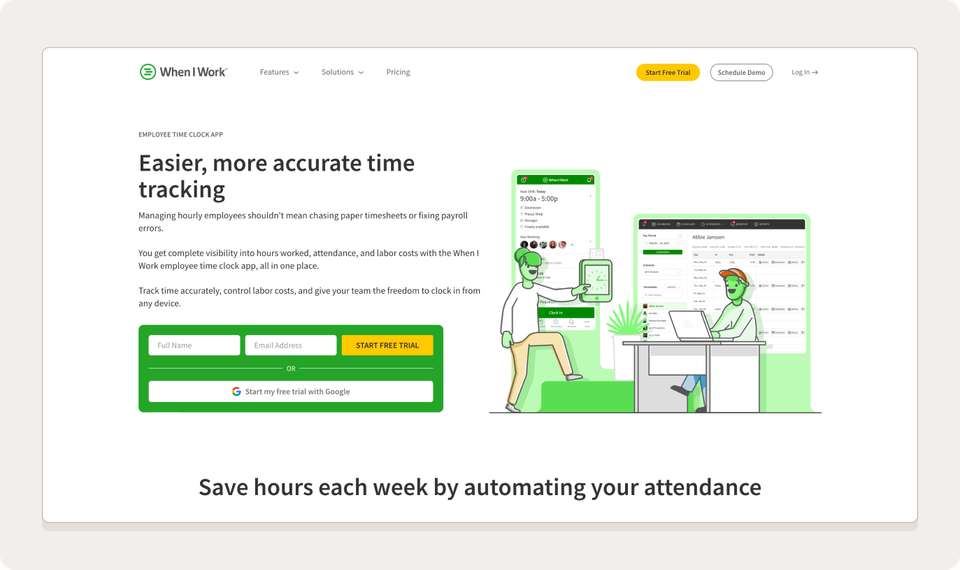
When I Work puts your schedule and your employee time clock in the same app. Your team clocks in from their phones or a shared tablet at work. Every punch lines up with the shift it belongs to, and you can compare scheduled and worked hours at a glance. That link keeps hours accurate.
You can block early clock-ins and set a geofence around each location. That way, no one clocks in 20 minutes before their shift or from home. Overtime alerts give you a heads-up while there’s still time to adjust the schedule.
What customers say: More than 200,000 workplaces use When I Work, and customers rate it 4.5 stars on Capterra. One reviewer said it was “easy to clock in and out for my shifts.”
Key features
- Mobile and kiosk clock-in: Employees clock in via the app or a shared tablet, with no special hardware required.
- Geofencing: Set a boundary around each work site to stop off-site punches and buddy punching.
- Schedule enforcement: Limit clock-ins to scheduled shifts and locations, and block early punches.
- Overtime rules and alerts: Set overtime rules so extra hours don’t catch you by surprise on payroll day.
- Payroll-ready timesheets: Compare scheduled and worked hours, approve timesheets, and send them to payroll.
Pricing: From $2.50 per user per month; 14-day free trial
2. Homebase
Best for: Single-location businesses that want a free plan
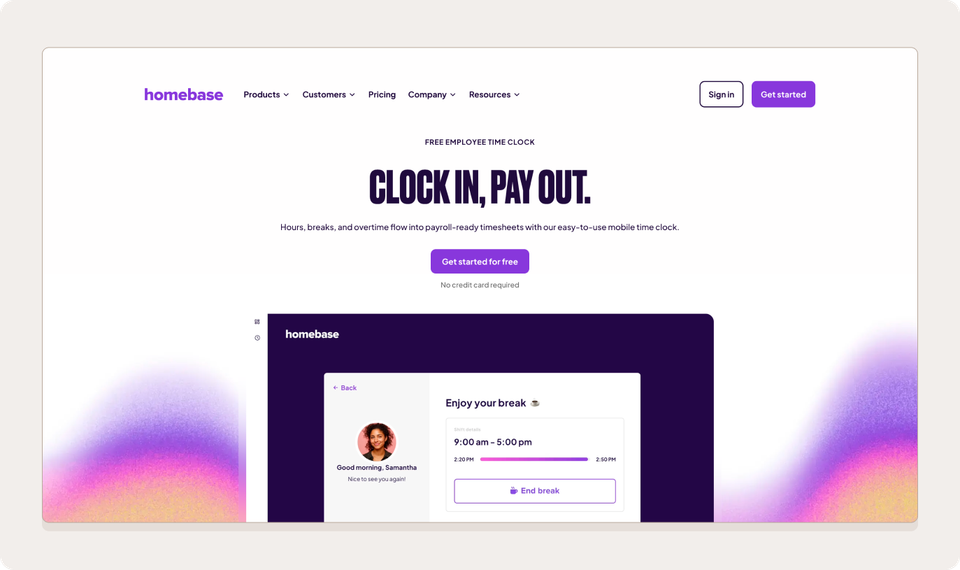
Homebase is an all-in-one app for hourly teams, with scheduling and a time clock in the same place. Its free plan covers one location with up to 10 employees. That makes it an easy starting point for a small shop or café that’s done with paper time cards.
Employees can clock in on their phones or a shared tablet. Managers can require a PIN or photo at clock-in and use GPS and geofencing to confirm location. Homebase also sends alerts for missed punches, breaks, and overtime. Some of these tools, like GPS time tracking and late-arrival alerts, are available on the paid Essentials plan.
What customers say: Homebase has a 4.6-star rating on Capterra. One reviewer said the free plan covers what they need: the time clock.
Key features
- Phone and tablet clock-in: Employees clock in from the app or a shared tablet, with PIN and photo options.
- GPS and geofencing: Confirm employees are on-site when they clock in.
- Time clock alerts: Get notified about missed punches and overtime, plus break reminders.
- POS integrations: Connect your point-of-sale system on every plan, including the free one.
Pricing: Free for one location with up to 10 employees; paid plans from $30 per location per month
3. Connecteam
Best for: Small teams and crews that work in the field
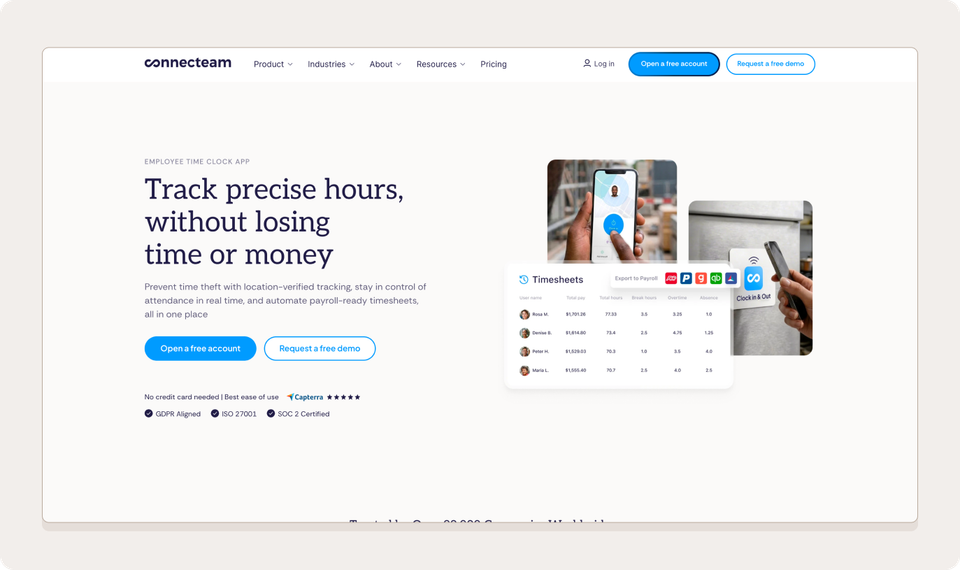
Connecteam is a mobile-first app for deskless teams. In addition to time tracking and scheduling, it offers extras like team chat and training courses. Teams with up to 10 users can use it for free.
Its time clock is built to keep punches honest when your team isn’t all in one building. Geofencing keeps clock-ins on-site, and you can block clock-ins before a shift starts. If someone forgets to clock out, Connecteam can do it for them at the end of their shift. Crews can also share a tablet set up as a kiosk, with a selfie required at clock-in.
What customers say: Connecteam has a 4.6-star rating on Capterra.
Key features
- Geofencing: Set work zones for each shift, job, or location, and approve clock-in requests from outside them.
- Clock-in limits: Let employees clock in only when they’re scheduled to work.
- Auto clock-out: End shifts automatically at the end of a shift or after a set number of hours.
- Kiosk clock-in: Turn a tablet into a shared clock-in station that requires a selfie.
Pricing: Free for up to 10 users; paid plans from $35 per month for the first 30 users, billed monthly
4. Deputy
Best for: Businesses that want labor law compliance tools
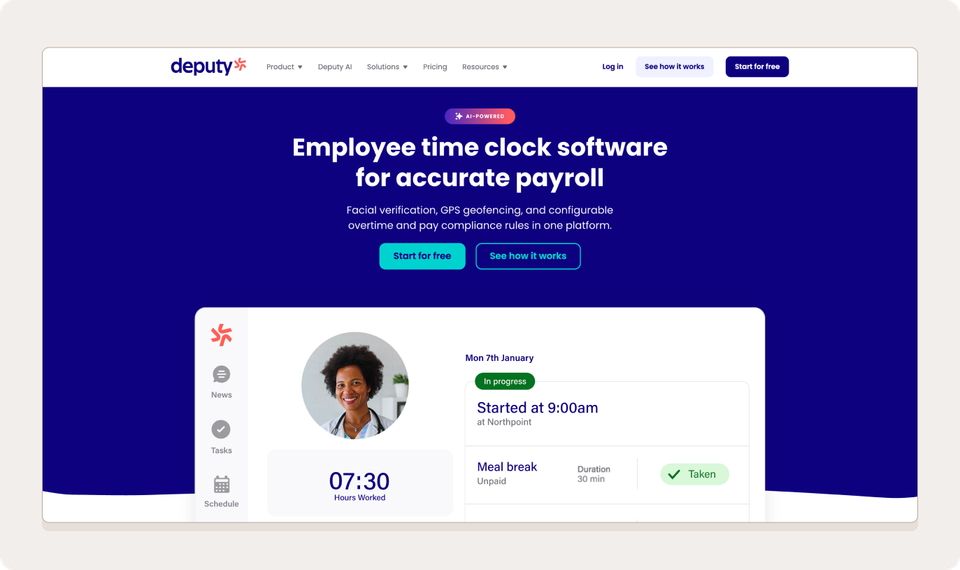
Deputy combines scheduling and time tracking for shift-based businesses, with a strong focus on labor law compliance. It tracks meal and rest breaks and includes tools to comply with fair workweek rules. That’s helpful if you operate in a city or state with predictive scheduling laws.
Your team has a few ways to clock in. On a shared iPad, the Deputy Kiosk app uses facial verification, so employees can’t clock in for each other. On their phones, employees get a GPS location stamp, and geofencing sets a boundary around each work site. If the internet goes down, staff can still clock in and record breaks.
When shifts end, managers review and approve timesheets, then export them to payroll.
What customers say: Deputy has a 4.6-star rating on G2.
Key features
- Facial verification kiosk: The iPad kiosk verifies who’s clocking in, with touchless options such as voice commands.
- GPS geofencing: Set a virtual boundary around a work location or client site.
- Break compliance: Track meal and rest breaks and keep detailed records.
- Payroll-ready timesheets: Review and approve hours, then export them to your payroll software.
Pricing: From $5.50 per user per month; $30 monthly minimum on monthly plans
5. 7shifts
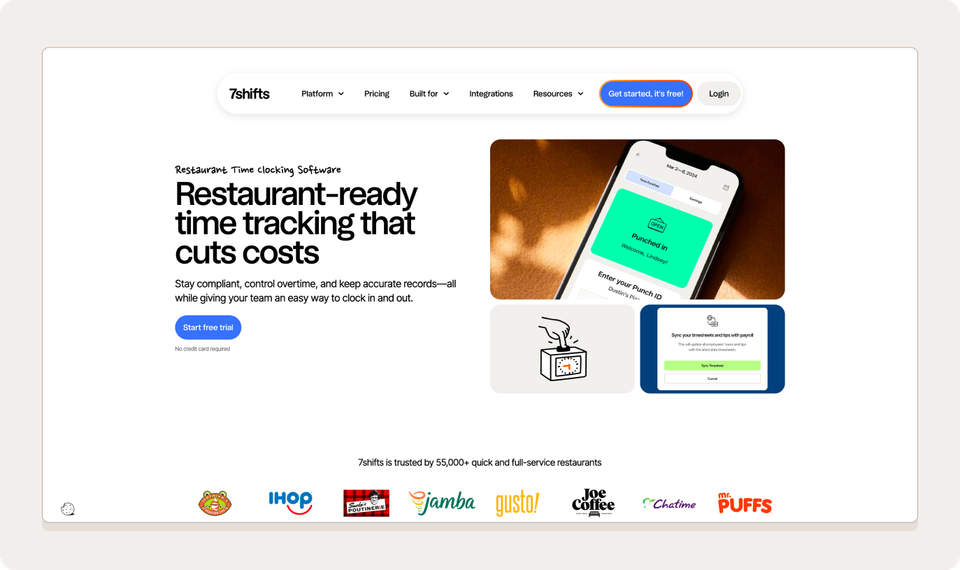
7shifts is scheduling and team management software built for restaurants, and more than 55,000 restaurants use it. The platform features reflect that focus, like prompts for staff to declare tips and labor budgets based on sales from your POS.
The time clock, called 7punches, runs on tablets, phones, computers, and POS devices. On the Pro plan and above, you can enable geofencing so staff can’t clock in from outside the restaurant. Pro also adds overtime alerts, break tracking, and state labor law tools with custom attestations. For extra proof, you can require a quick photo at clock-in to stop buddy punching.
One thing to know: the free plan covers scheduling and team communication, but not the time clock.
What customers say: 7shifts has a 4.7-star rating on Capterra.
Key features
- Time clock on any device: Set up clock-ins on tablets, phones, computers, or POS devices.
- Geofencing (Pro): Block clock-ins and clock-outs outside the restaurant.
- Overtime alerts (Pro): Get notified when employees are about to go into overtime.
- Labor compliance tools (Pro): Use state-based compliance tools and custom break attestations.
- Tip declarations: Prompt staff to declare their tips when they clock out.
Pricing: Free scheduling plan for one location; time clocking from $44.99 per location per month
6. Sling
Best for: Teams that mostly need free scheduling
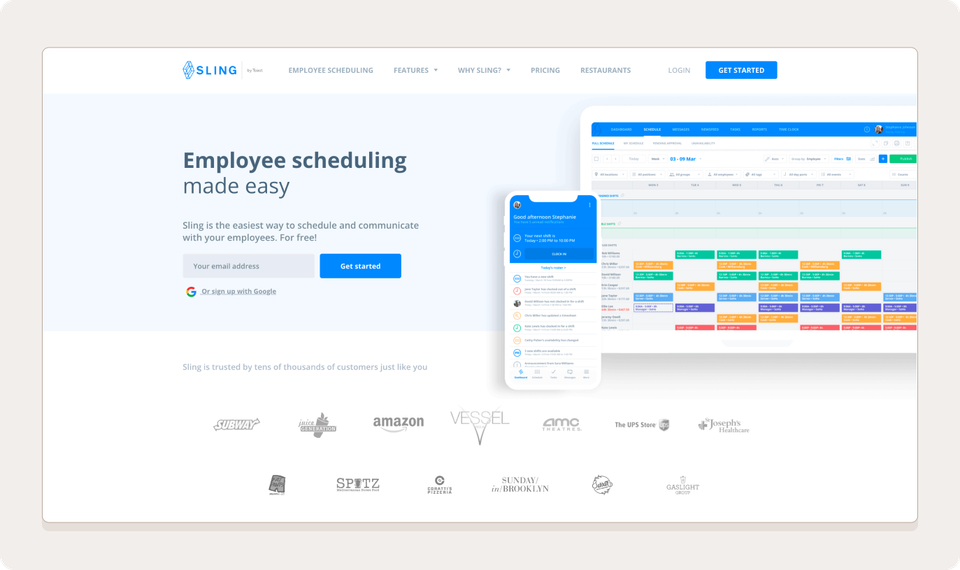
Sling started as a scheduling app and is now part of Toast. Its scheduling tools are free, and the time clock is a paid upgrade. It’s a good fit if you want to start with scheduling and add time tracking later.
Once you turn on the time clock, employees can clock in from the Sling mobile app or a web browser. Managers can round punches and block early clock-ins. Automatic clock-outs catch anyone who forgets at the end of a shift. You can also add geofencing to keep punches on-site, and Sling can remind staff to clock in and out.
If you’d rather have everyone clock in on a shared device, the Business plan adds a kiosk and tracks late arrivals for you. Restaurants that use Toast can also sync employee profiles between the two.
What customers say: Sling has a 4.6-star rating on Capterra, and one warehouse manager called it “a very easy app to use for time clock and time off.”
Key features
- Mobile and web clock-in: Employees clock in from the Sling app or a browser on the Premium plan.
- Geofencing: Set boundaries around work sites and get notified if someone hasn’t arrived by their start time.
- Clock-in rules: Block early clock-ins, round punches, and clock employees out automatically.
- Kiosk clock-in (Business): Turn a computer or tablet into a shared time clock that also tracks late arrivals.
Pricing: Free plan for scheduling only; time tracking from $2 per user per month
7. Buddy Punch
Best for: Teams that need a stand-alone time clock
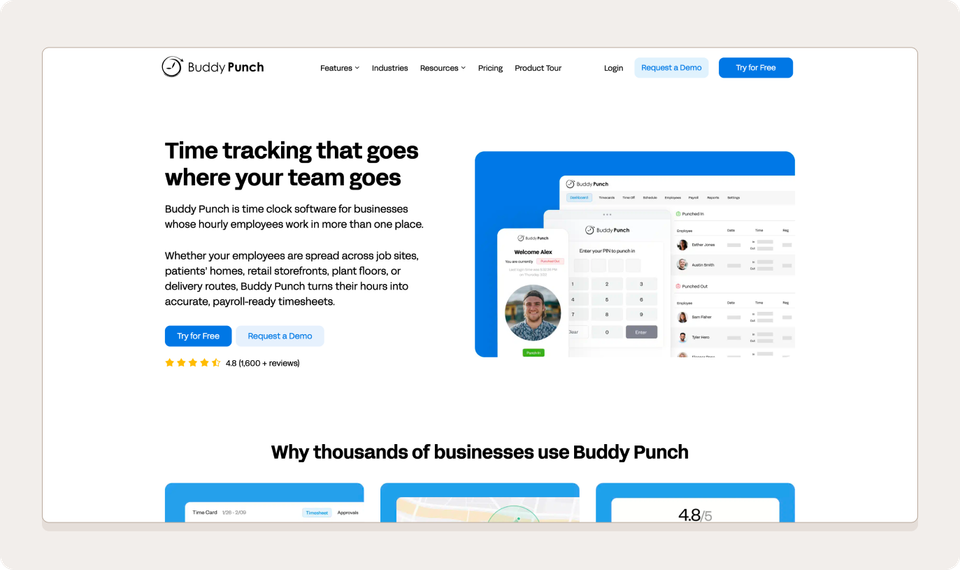
Buddy Punch is time tracking software first, with scheduling as an extra. It’s a good fit for teams that already have a way to build schedules and just need accurate hours. Even the entry-level plan records GPS location for every punch and integrates with payroll tools like QuickBooks.
Employees can clock in from a phone or a browser. The Pro plan adds more ways to confirm who’s punching in, like a shared kiosk with PIN punches or a webcam photo at clock-in. Pro also adds geofencing to keep punches tied to the job site. Managers can also block clock-ins outside set times and let Buddy Punch apply break rules automatically.
What customers say: Buddy Punch has a 4.8-star rating on Capterra from more than 1,100 reviews. One warehouse manager said scheduling and payroll went from 5+ hours a week to less than 2 after switching.
Key features
- GPS on punches: Record each employee’s location when they clock in or out, on every plan.
- Geofencing (Pro): Limit punches to a set area around each work site.
- Kiosk, QR code, and photo clock-in (Pro): Set up a shared kiosk, scan QR codes, or capture a webcam photo with each punch.
- Lockout periods and break rules: Restrict clock-ins to certain times and apply break rules and punch rounding automatically.
Pricing: $19 monthly base fee plus $4.99 per user per month
8. QuickBooks Time
Best for: Businesses that already run QuickBooks
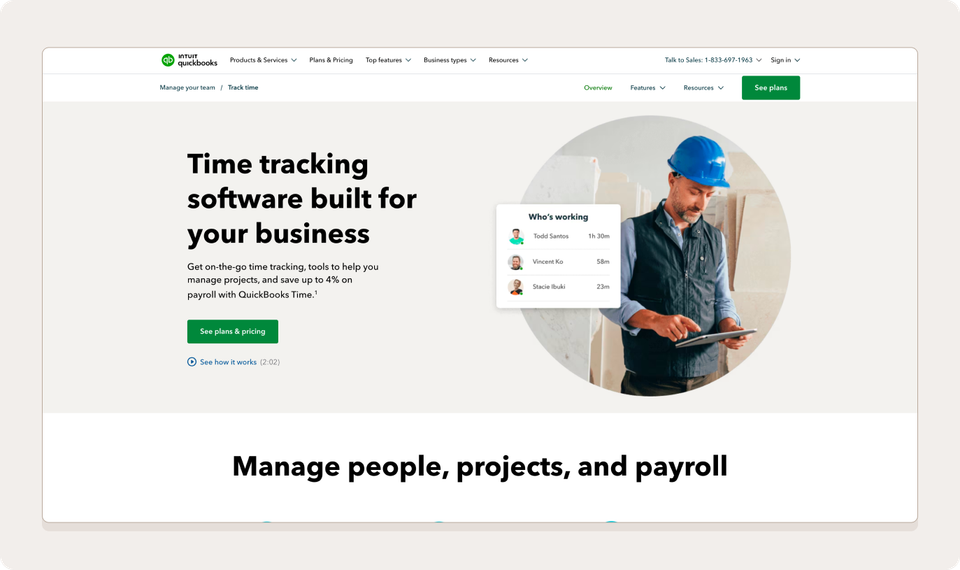
QuickBooks Time, formerly TSheets, is Intuit’s time tracking app. One of the platform’s biggest strengths is how it works with QuickBooks Online and QuickBooks Payroll. Approved hours flow straight into payroll and invoicing, so no one has to export or retype them.
Employees can clock in from the mobile app, even without internet service, or at a shared Time Kiosk using a PIN or photo. Managers get overtime alerts and can track hours by job or project. On the Elite plan, geofencing reminds employees to clock in and out when they arrive at or leave a job site. Elite also adds mileage tracking, which helps field crews that drive between sites.
What customers say: QuickBooks Time has a 4.7-star rating on Capterra from more than 7,000 reviews. One construction VP said it’s “easy to sync and transfer time clock data over to QB for payroll.”
Key features
- QuickBooks sync: Send approved timesheets to QuickBooks Payroll and QuickBooks Online, with job codes that map to customers and classes.
- Time Kiosk: Turn a shared device into a clock-in station with PIN or photo verification.
- Offline clock-in: Let employees clock in and out without internet service.
- Geofencing and mileage tracking (Elite): Remind employees to clock in at job sites and log miles automatically.
Pricing: $20 per month plus $10 per user
9. Jibble
Best for: Teams that want a free time clock for unlimited users
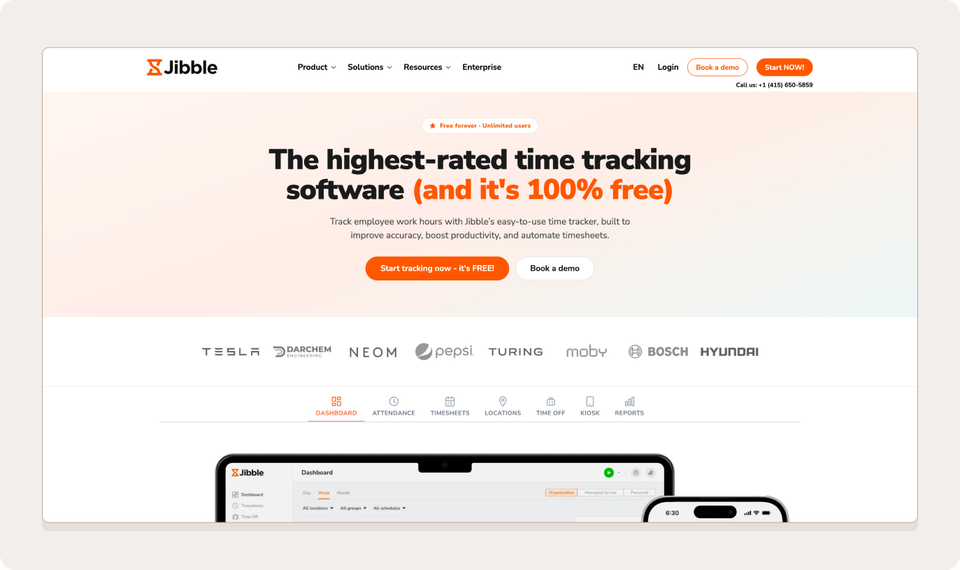
Jibble’s free plan has no user cap. It’s a low-cost way for larger teams to replace paper time cards, and it covers more than the basics.
Employees can clock in from their phones or a shared kiosk tablet. Facial recognition matches each person’s selfie to their stored photo, so no one can clock in for a coworker. Geofencing blocks clock-in attempts from outside the work area, and offline mode lets staff clock in without internet service. Jibble also calculates overtime and tracks breaks for you.
The free plan limits the number of geofences you can set up, so businesses with multiple locations may need a paid plan.
What customers say: Jibble has a 4.8/5-star rating on Capterra based on more than 3,000 reviews.
Key features
- Facial recognition: Verify each clock-in on an employee’s phone or a shared kiosk.
- Geofencing: Block clock-ins outside an approved work area, such as a store or job site.
- Offline clock-in: Let employees clock in and out without an internet connection.
- Overtime and break tracking: Automatically calculate overtime and track breaks for payroll-ready timesheets.
Pricing: Free for unlimited users; paid plans priced per user
What is employee time clock software?
Employee time clock software is a digital tool that records when hourly employees start and end their shifts. The tool replaces paper time cards and old punch clocks, as well as the spreadsheets managers use to total hours. The biggest reason to switch to an employee time clock software is how it simplifies your time tracking.
Most tools work as an online time clock. Employees clock in on their phones or a shared tablet, and each punch is saved with a timestamp. The software totals everyone’s hours and generates timesheets.
Managers review and approve those timesheets, then send the hours to payroll. Many tools also track time off and attendance, which is why you’ll also see them called time and attendance software.
What are the features you should look for in employee time clock software?
Small timekeeping errors, like a forgotten punch or a few early clock-ins, add up to real payroll costs over time. These five features help you catch them early.
1. Clock in from any device
Look for a tool that lets employees clock in from their own phones. For teams that share a workspace, a tablet near the door can work as a kiosk.
A computer at the front desk works too, so you don’t need to buy a punch clock. Kiosk mode with a PIN or photo also helps when some employees prefer not to use a personal phone for work.
2. GPS and geofencing
A GPS time clock app records each employee’s location when they clock in. Geofencing goes a step further. You set a boundary around a work site, and the app blocks punches from outside it.
For example, a home care agency can make sure caregivers clock in only when they arrive at a client’s home. A business with several stores can ensure each employee clocks in at the correct store. Some tools block off-site punches, while others only send a reminder, so check how each one works.
3. Schedule enforcement and attendance alerts
When your time clock knows the schedule, it can stop problems before they start. You can block employees from clocking in more than a few minutes before their shift, so early arrivals don’t turn into paid time.
Real-time alerts tell you when someone is late or hasn’t shown up. That gives you time to find coverage before the shift falls apart.
“Payroll is really quick—I just compare pay runs, and it takes me 10 minutes, where it used to take hours. “
– People Team, DoubleGood
4. Overtime and break tracking
Many managers know the feeling of never scheduling overtime, but it still shows up on payroll. It usually comes from small things, like an employee staying late to cover a shift or working through a break.
Overtime alerts warn you when someone is close to going over their hours. That’s your cue to adjust the schedule. Break reminders prompt employees to take required breaks. If you’re ever asked to show that you followed state rules, break records also give you proof.
5. Payroll-ready timesheets
Your time clock should do the math for you. Every punch should feed into a timesheet that totals regular and overtime hours. Managers should be able to review and approve timesheets from their phones. Once hours are approved, you can export them to payroll rather than retyping them, avoiding costly payroll errors.
How to choose the right time clock software for your business
Whether you’re comparing time clock software for a small business or for a team with several locations, you want to narrow your list before you sign up, then test your top picks during a free trial. Here’s how:
- Map how and where your team clocks in. A single location may only need a shared kiosk tablet. Teams across several sites need geofencing for each one, and field teams need mobile clock-in with GPS and offline mode.
- Decide if you need scheduling built in. A time clock tied to the schedule can block early clock-ins and flag overtime before it happens. Automatic scheduling and labor demand forecasting help you staff right from the start.
- Check overtime and break rules for your state. States like California, Washington, and New York have stricter break rules than federal law. Look for break reminders and records, and check your state’s labor department for details.
- Look at how hours are processed in payroll. Make sure managers can approve timesheets from their phones and fix missed punches before payroll closes. Then check that the hours export to your payroll software.
- Compare pricing and test it with a free trial. Per-user pricing grows as you hire, while per-location pricing adds up across sites. Run your trial for a full pay period, including a test payroll export.
Make every punch count
The right employee time clock software turns every clock-in into accurate hours your payroll can trust. For shift-based teams, the biggest wins come from a time clock that knows the schedule. A time clock that knows the schedule stops early punches and reduces surprise overtime before they cost you.
When I Work puts your schedule and employee time clock in one app, so every punch lines up with the shift it belongs to.
Try it free for 14 days and see how much easier your next payroll feels.
FAQ
What is the best employee time clock software?
When I Work is the best employee time clock software for shift-based teams because it ties every clock-in to the schedule. If you run a restaurant, 7shifts is built for your industry. If your books live in QuickBooks Premium, QuickBooks Time connects directly to payroll.
What is the best free employee time clock software?
Jibble offers free time tracking for unlimited users, including facial recognition. Homebase and Connecteam also have free plans, but they’re limited to 10 employees or users. Free plans often hold back some features, so check what’s included before you commit.
What’s the difference between time clock software and time tracking software
Time clock software records when employees start and end their shifts, so it’s built around attendance and hourly pay. Time tracking software often measures how long people spend on tasks or projects, which is common for salaried or client-billed work. Many tools now do both.
How many hours straight can you legally work in a day?
Federal law doesn’t limit how many hours an adult employee can work in a day, as long as overtime is paid for hours worked over 40 in a week. Some states and industries set their own limits, and workers under 16 have stricter rules. Check your state’s labor department for the rules that apply to your team.
What is the 7-minute rule for employees?
The 7-minute rule lets employers round clock-in and clock-out times to the nearest quarter hour. Under federal rules, 1 to 7 minutes can be rounded down, but 8 to 14 minutes must be rounded up. Rounding has to even out over time so employees get paid for all the time they work.